Context Service
Contextual, scalable, and effortless
data abstraction
Enable extensible yet performant capabilities to source & serve business data in any digital process for any industry.

The 1-2-3 of using
Context Service
A flexible data abstraction service to source & serve business data in digital processes at scale, that is super easy to embed in any CRM application and extensible by customers and partners.

Jobs To Be Done (JTBD)
I want to streamline the sharing and consumption of business application data so that the system can seamlessly supply data needed by the procedure at both design and runtime.
- 1
- 2
- 3
Key Capabilities
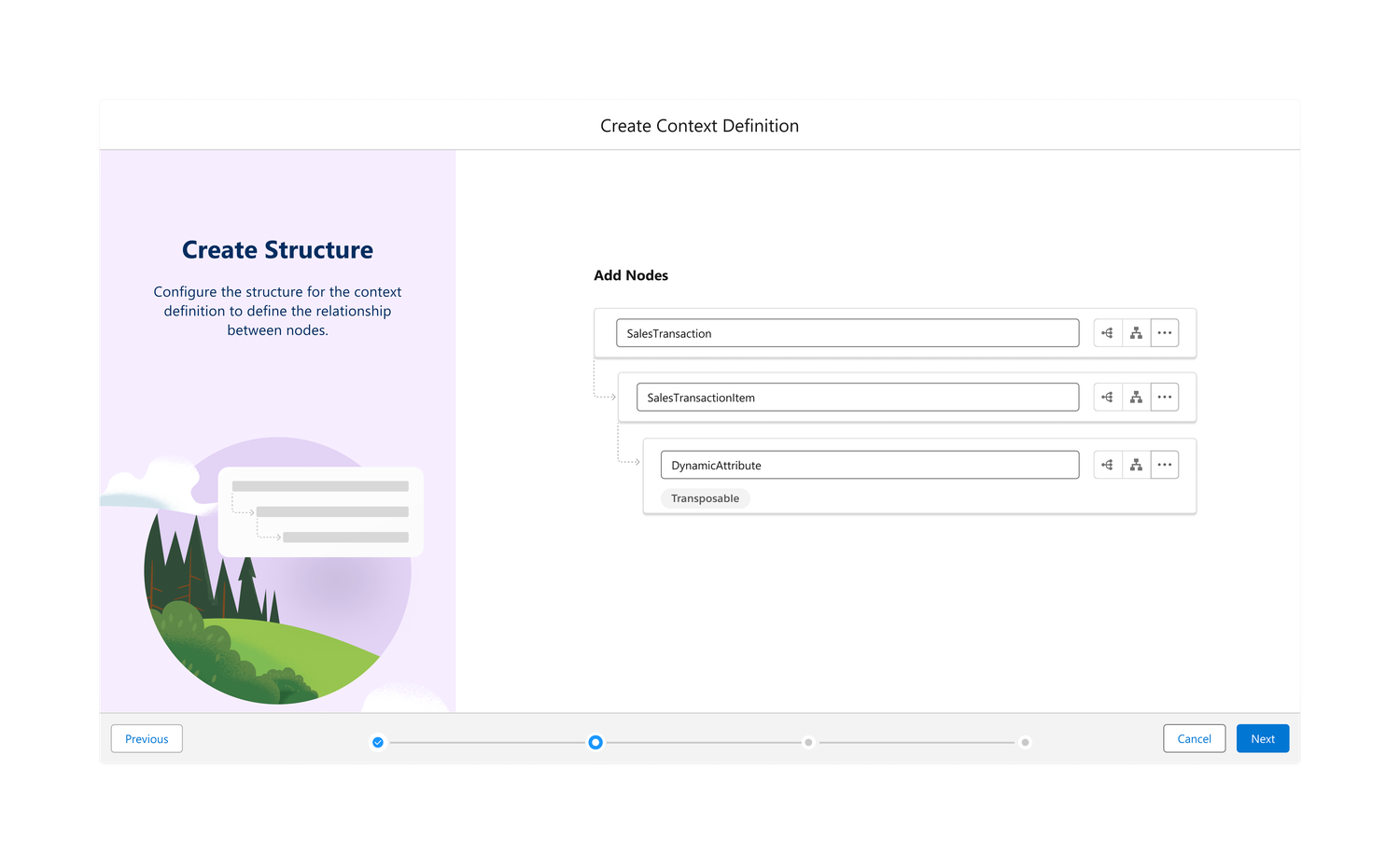
Create Structure
Utilising a visual hierarchical structure for clarity that enhances the understanding of node and attribute relationships.
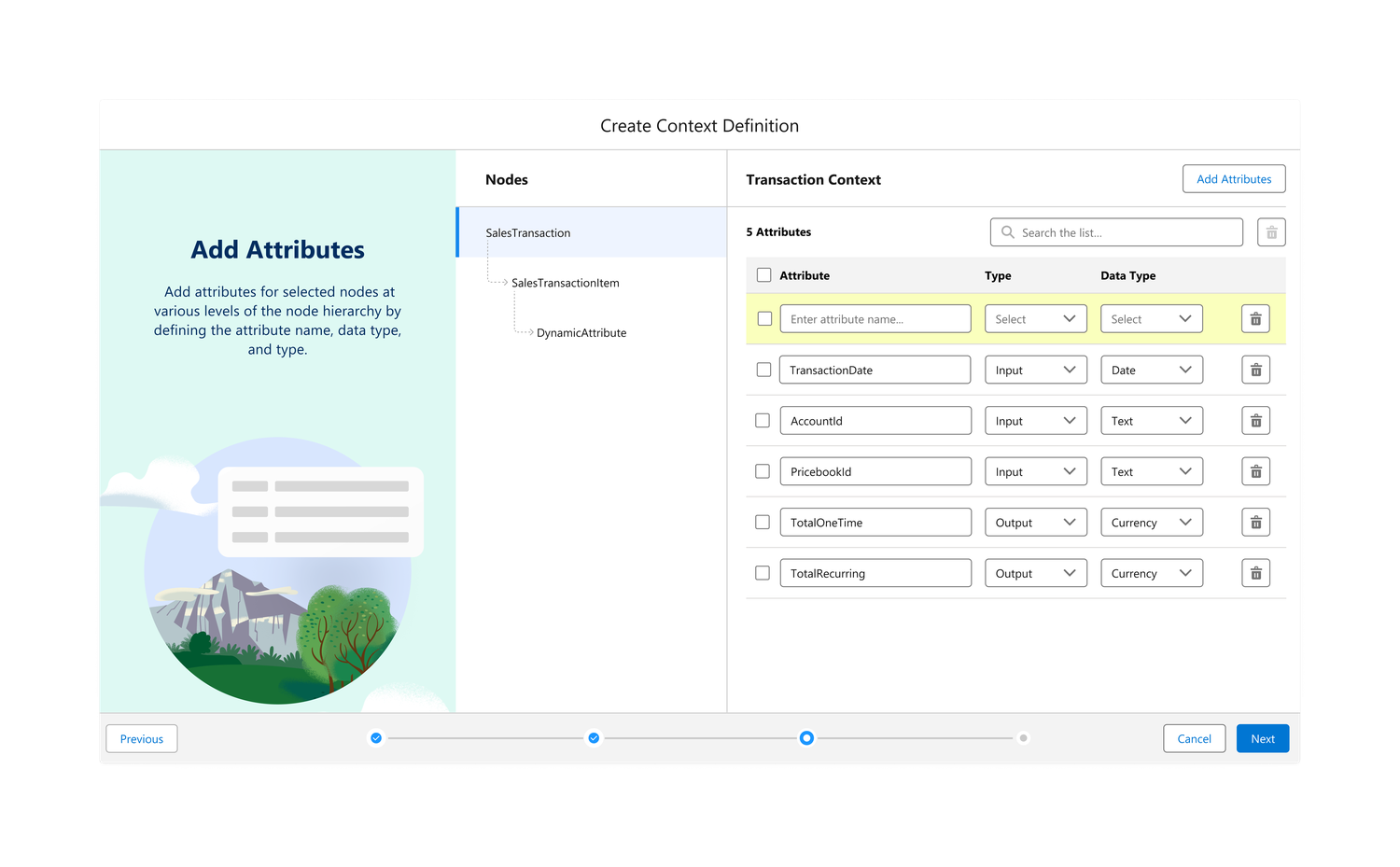
Add Attributes
Click and create attributes, and relevant data types, to ensure each one carries the necessary data.
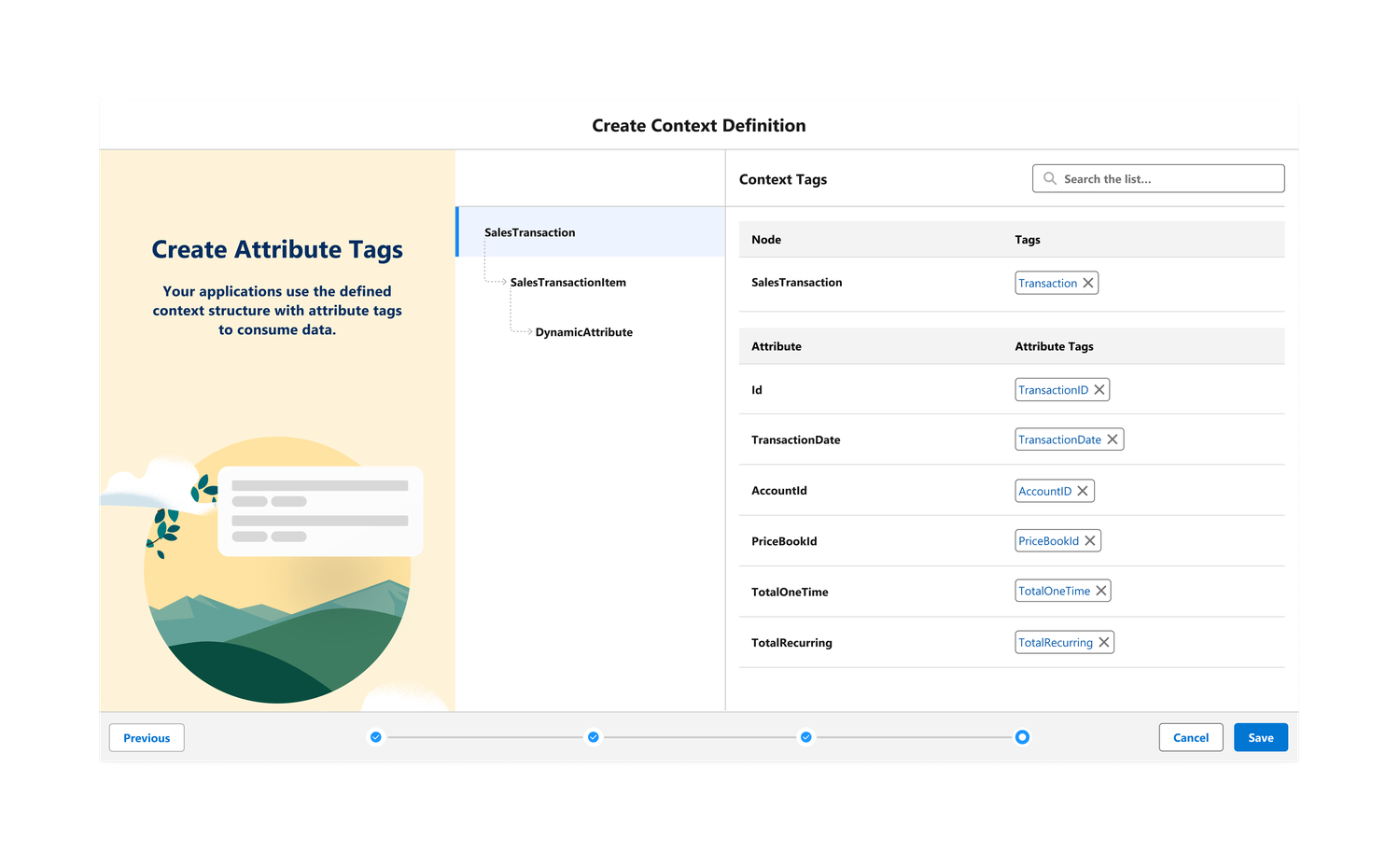
Add Tags
Allowing users to create context tags, ensuring that each node and attribute gets what it needs.
Information Architecture
Everything an admin needs sits under a single Setup entry point. From there the app splits into context definitions, types, and templates, and the definition itself is built in four steps before it opens into a detail view where structure, data, and mappings live side by side.
- Context Definition
- Context Types
- Context Templates
-
Definition List View
- Name
- Description
- Status
- Created By
- New Definition
-
Step 1 (Definition Details)
- Name
- Description
- Effective from (Date & Time)
- Effective to (Date & Time)
-
Step 2 (Create Structure)
Add Node
- Add Child Node
- Add a Sibling
- Delete
- Mark As Transposable
-
Step 3.1 (Add Attributes for standard node)
- Add new
- Search
- Bulk delete
- Attribute Name
- Attribute Type
- Attribute Data Type
- Key/Value
-
Step 4 (Add Tags – Multiple nodes)
- Add tags for node
- Add tags for attributes
- Context Detail
-
Details Tab (Default open)
- Name
- Status
- Effective From
- Effective To
- Created By
- Last Modified By
- Description
-
Structure along with attributes
- Parent Node
- Child Node
- Sibling Node
- Transposable Node
-
Map Data
- Mapping Name
- Description
- Mapped Attributes
- Unmapped Attributes
- Status
- Action – Delete, Edit, Activate
-
New Mapping (Action)
- Name
- Description
-
Mapping Builder
Toolbar Actions
- Undo
- Redo
- Collapse all (toggle)
- Activate
- Save
- Left side panel (Fixed structure, created by user)
- Right side – Add SF objects for mapping along with attributes
- API
- Setup entry. Context Setting lives in Setup, so admins find it where every other org-level configuration already sits.
- Three parallel objects. Definitions, types, and templates are siblings rather than nested, since admins move between them constantly.
- Four-step creation. Definition details, structure, attributes, then tags, each step only asking for what the next one needs.
- Detail view as home base. Once created, a definition opens to its own detail view where structure, data, and mappings are all reachable without leaving the page.
How It Works?
The service sits between the data and the processes that need it. An admin describes the shape of the business data once, points each field at wherever it already lives, and every downstream process binds to that same definition instead of to the source.
Outcome
Context Service
-
0 → 1
designed the product from conceptualization all the way through to GA
-
2 Rounds of UT
unmoderated in R246, then in person with the BT team in R256
-
3 Releases
from the first user test in R246 to the second round of enhancements in R256
-
Multi-cloud
recruiting participants meant working across clouds with several stakeholders